
Excerpt Settings
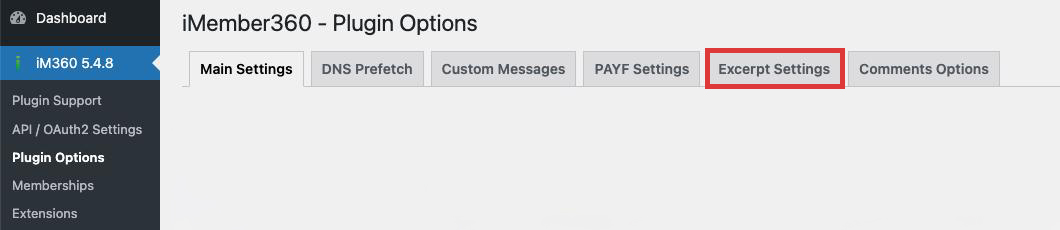
Excerpt Settings allow you to configure the text that is displayed after content excerpts for protected content.
Setting
Section titled “Setting”Excerpt Text
Section titled “Excerpt Text”The text/HTML that is appended after excerpts of protected content.
| Values | HTML text |
| Default | None |
Purpose
Section titled “Purpose”When a user without proper permissions views protected content, they may see an excerpt instead of the full content. The Excerpt Text is displayed after this excerpt to:
- Inform users that more content is available
- Encourage login or registration
- Provide links to access the full content
- Promote membership upgrades
Example Content
Section titled “Example Content”<div class="excerpt-notice"> <p><strong>Want to read more?</strong></p> <p>This content is available to members only. <a href="/login">Log in</a> or <a href="/register">become a member</a> to access the full article.</p></div>Related Settings
Section titled “Related Settings”This setting works in conjunction with the Excerpt options in Main Settings:
- Force Excerpts - Must be enabled to show excerpts
- Excerpt Length - Controls how much content is shown
- Excerpt HTML Wrapper - Wraps the excerpt content
- Disable Excerpt Links - Hides links in the excerpt text
Best Practices
Section titled “Best Practices”- Keep the message concise and action-oriented
- Include clear calls-to-action (login, register, upgrade)
- Use appropriate styling to make it stand out
- Consider different messages for logged-in vs. logged-out users
- Test on various content types (posts, pages, custom post types)